Trying out Thunderbird Appointment While I Patiently Wait For An Invite
Scheduling TTRPG groups as an adult can be weirdly difficult sometimes. For the PF2e game I run I usually make a poll on Rallly. The problem with that is I need to have my calendar side by side and pick out all the days I can run. I would love a tool that integrates with my calendars and shows the time slots to my players. Thunderbird Appointment sort of aims to do that.
In April of last year there was an announcement that a paid mail service under the Thunderbird branding was coming. The service is going to include an appointment scheduling software, so I put my name on the waitlist.
That same month the repo for Thunderbird Appointment went up on GitHub and I tried to set it up locally. However, Appointment depends on another project called Accounts and that was not yet ready. I opened an issue to learn more. Almost a year later and I'm still working my way through the waiting list, so I'm taking another stab at running the project myself.
Setting up Thunderbird Accounts locally
Thankfully, for the most part you can just follow the instructions on the readme.
You will need uv installed [1] and to update your hosts file. I tried to temporarily modify my hosts through a project specific flake.nix, but that doesn't work well since you also need the host overrides in your browser. I relented and instead added the following to my system configuration temporarily:
services.dnsmasq = {
  enable = true;
  settings = {
    address = [
      "/keycloak/127.0.0.1"
      "/stalwart/127.0.0.1"
    ];
  };
};

users.users.<username>.extraGroups = [ "docker" ];
  virtualisation = {
    docker = {
      enable = true;
      enableOnBoot = false;
    };
  };
You will also need to have docker enabled in your configuration file. enableOnBoot isn't strictly necessary, but I like to start it on demand to save resources.
Also, during the setup steps the bootstrap script failed for me. I've opened an issue and was able to workaround the error by creating the missing mail/etc directory by hand.
Setting up Thunderbird Appointment locally
Appointment is a bit more finicky than Accounts, but you can still mostly follow the readme.
The first issue is when the instructions tell you to run:
docker-compose exec accounts uv run manage.py create_client 'Appointment' 'dev contact' '[email protected]' 'https://example.org' --env_type dev --env_redirect_url 'http://localhost:5000/auth/accounts/callback' --env_allowed_hostnames 'localhost:8080,accounts:8087'
that will fail with:
Unknown command: 'create_client'. Did you mean createcachetable?
Type 'manage.py help' for usage.
This is because the create_client command was removed. The good news is that it looks like the step is unnecessary now and can be skipped. I've opened an issue to report that and confirm you can safely skip the step.
Additionally, the Docker compose files for Appointment and Accounts expose several containers on the same ports and will conflict. I had to change postgres (5432), the frontend (8080) and mailpit (1025) ports. That also meant I had to update the corresponding values like FRONTEND_URL in the backend/.env file.
A little preview of Thunderbird Appointment
On the off chance someone else is salivating over Appointment, here are some screenshots and a little tour. Once all the ports are fixed, you can access Thunderbird Appointment:
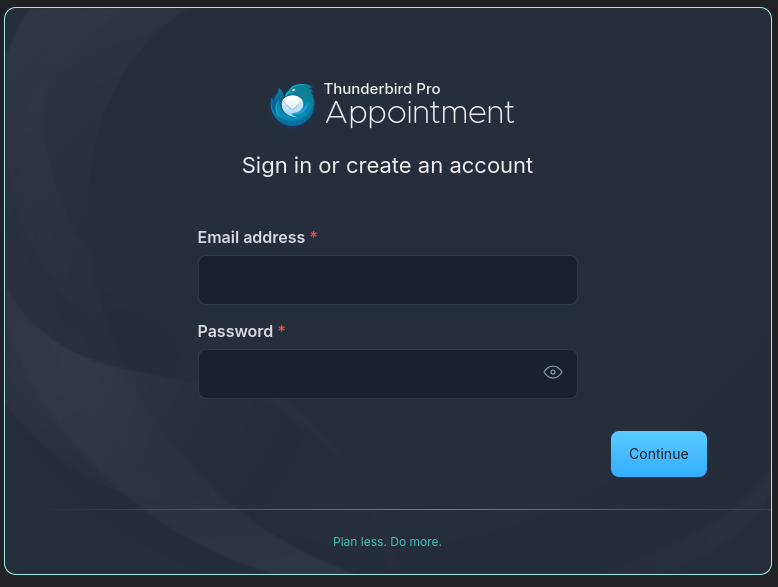
However, this leads to a question: what account do we log in with? By default Thunderbird Accounts has an admin account setup. You can go to the Thunderbird Accounts login page:
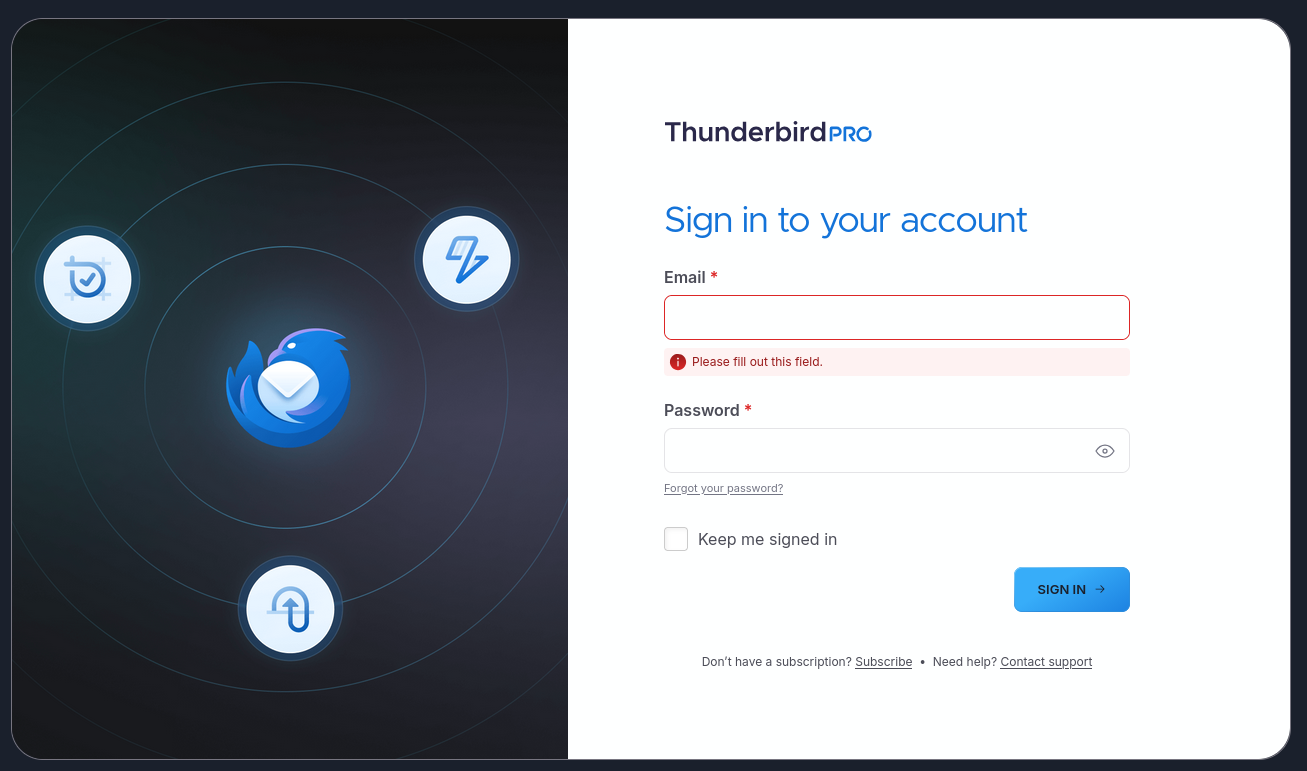
And login as admin. That will take you to this landing page:
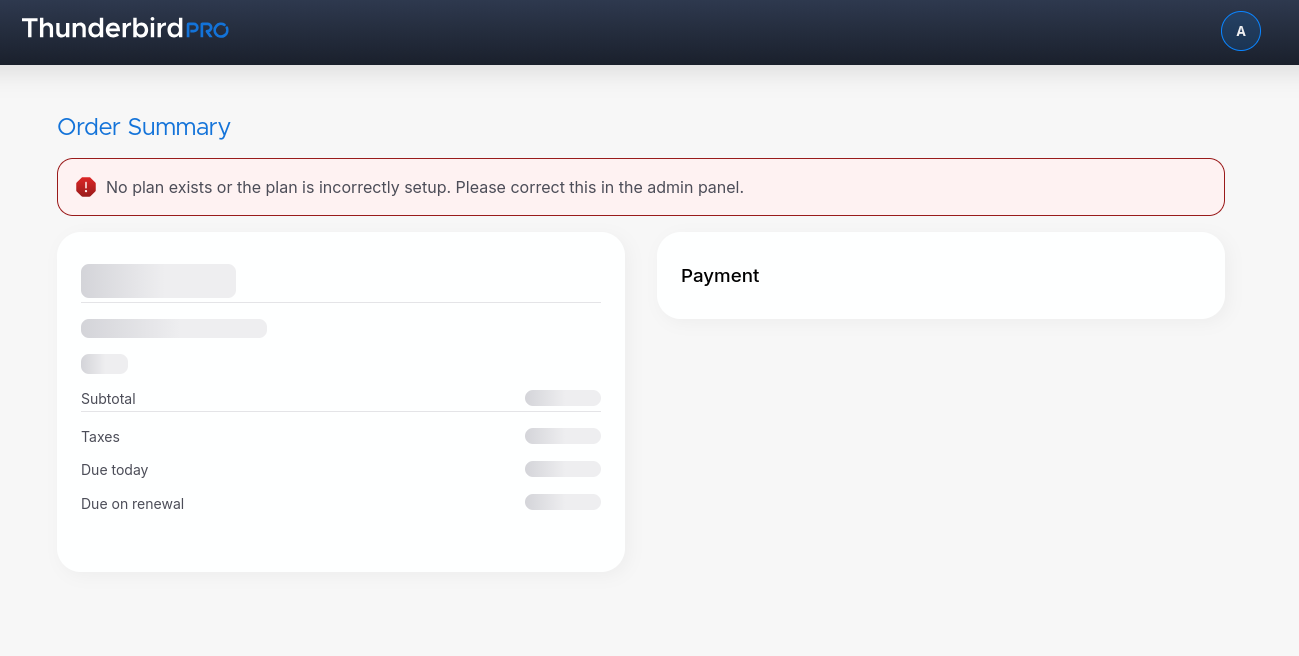
Sadly, you cannot log into Appointment with that account.
I spent a not insignificant amount of time in the Stalwart admin panel trying to figure this out:
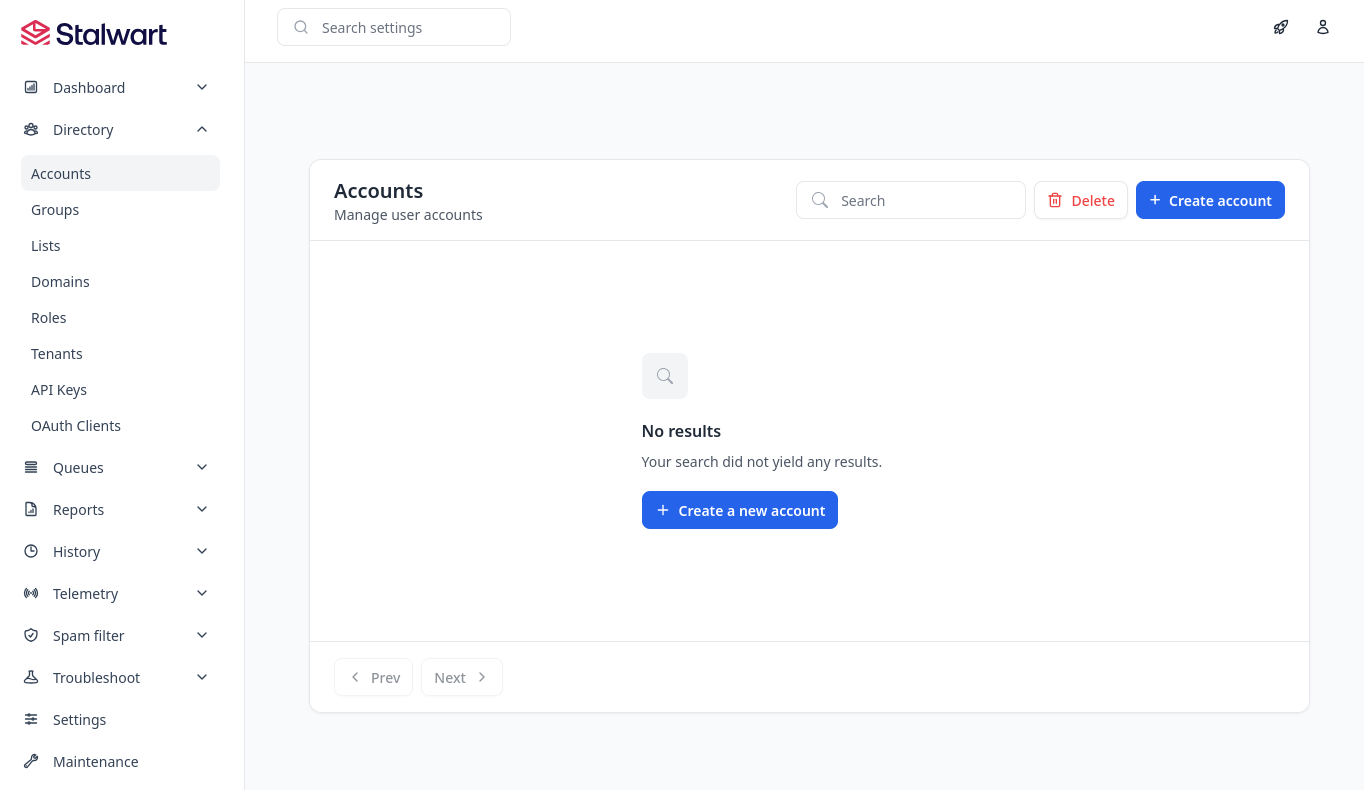
Stalwart is a really impressive email server (and now CalDAV server) project that Thunderbird Mail is built around. [2] Unfortunately, for local testing the answer was to not use Stalwart.
Instead, in backend/.env, you can set APP_ALLOW_FIRST_TIME_REGISTER=True and whatever credentials you enter at the Appointment login page will be used to create a user. Then you can proceed with the account setup flow:
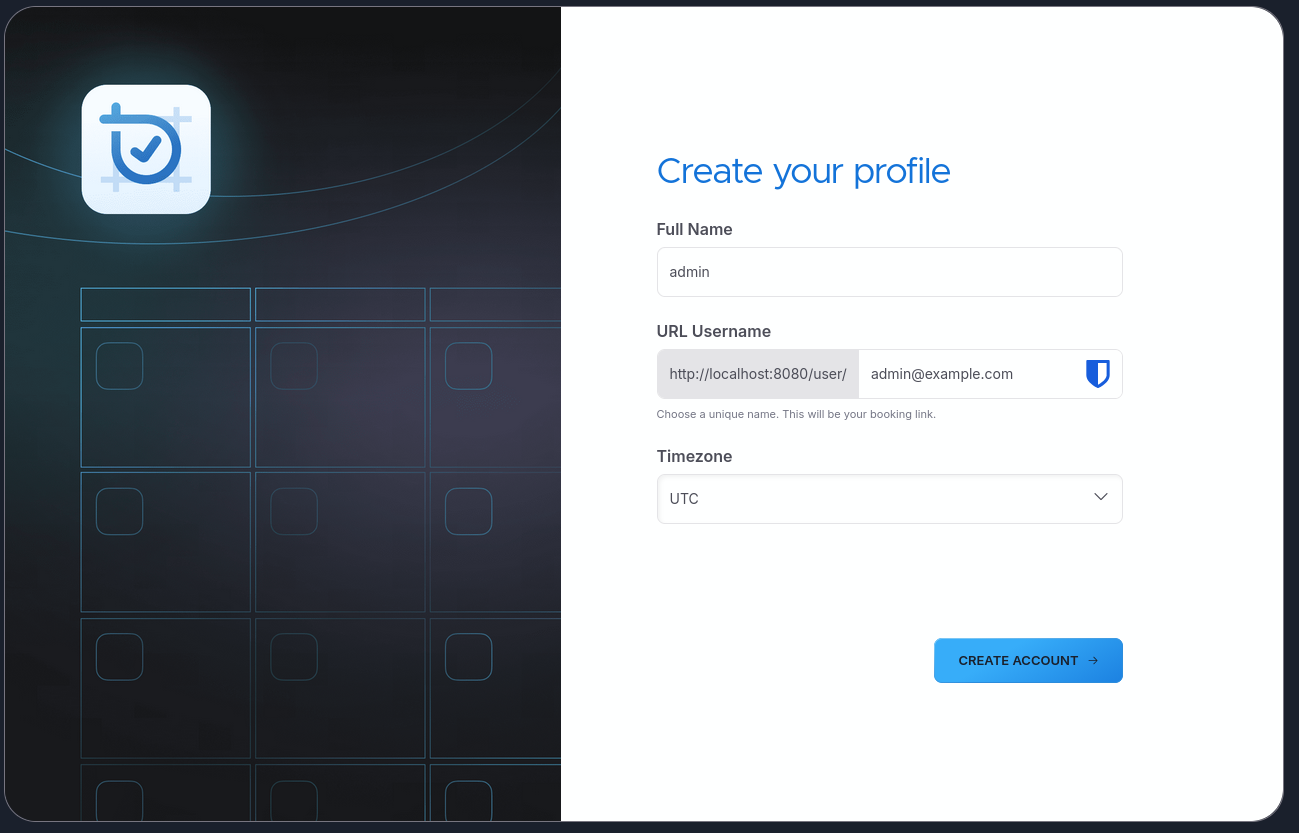
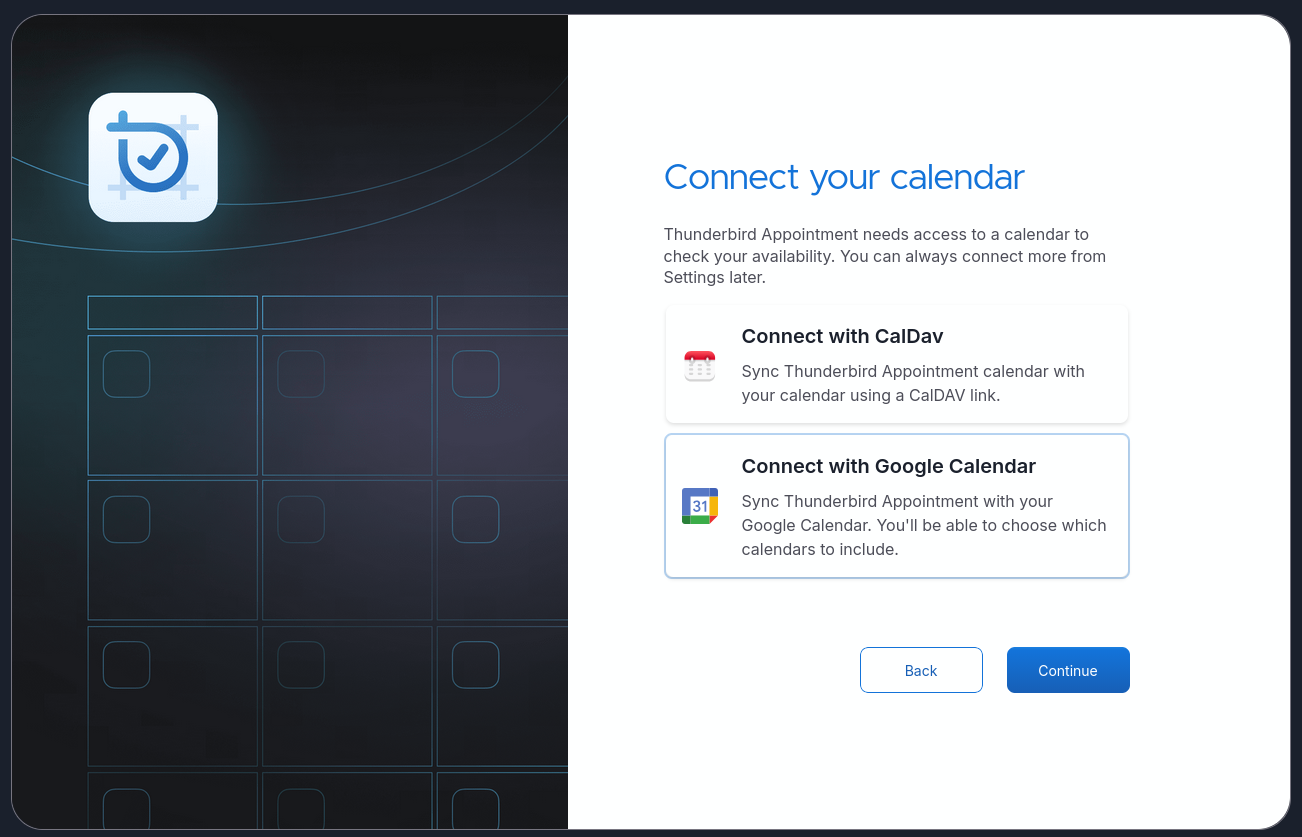
I had the choice to connect a Google Calendar or a CalDav calendar:
The Google auth will fail:
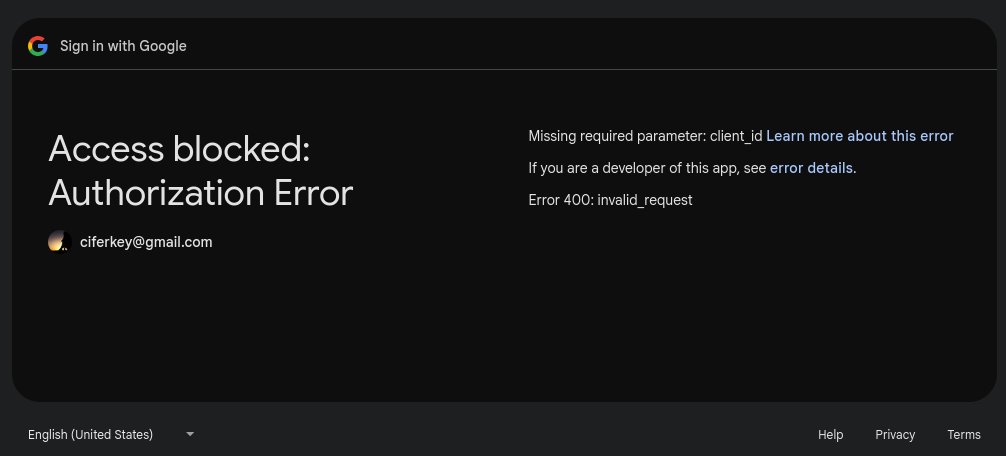
That is to be expected because you need to set some configuration information in backend/.env:
GOOGLE_AUTH_CLIENT_ID=
GOOGLE_AUTH_SECRET=
GOOGLE_AUTH_PROJECT_ID=
GOOGLE_AUTH_CALLBACK=http://localhost:5000/google/callback
I've messed around with GCP enough, that I didn't want to waste time setting up a whole new project just to test the integration.
Instead I tried out the CalDav integration:
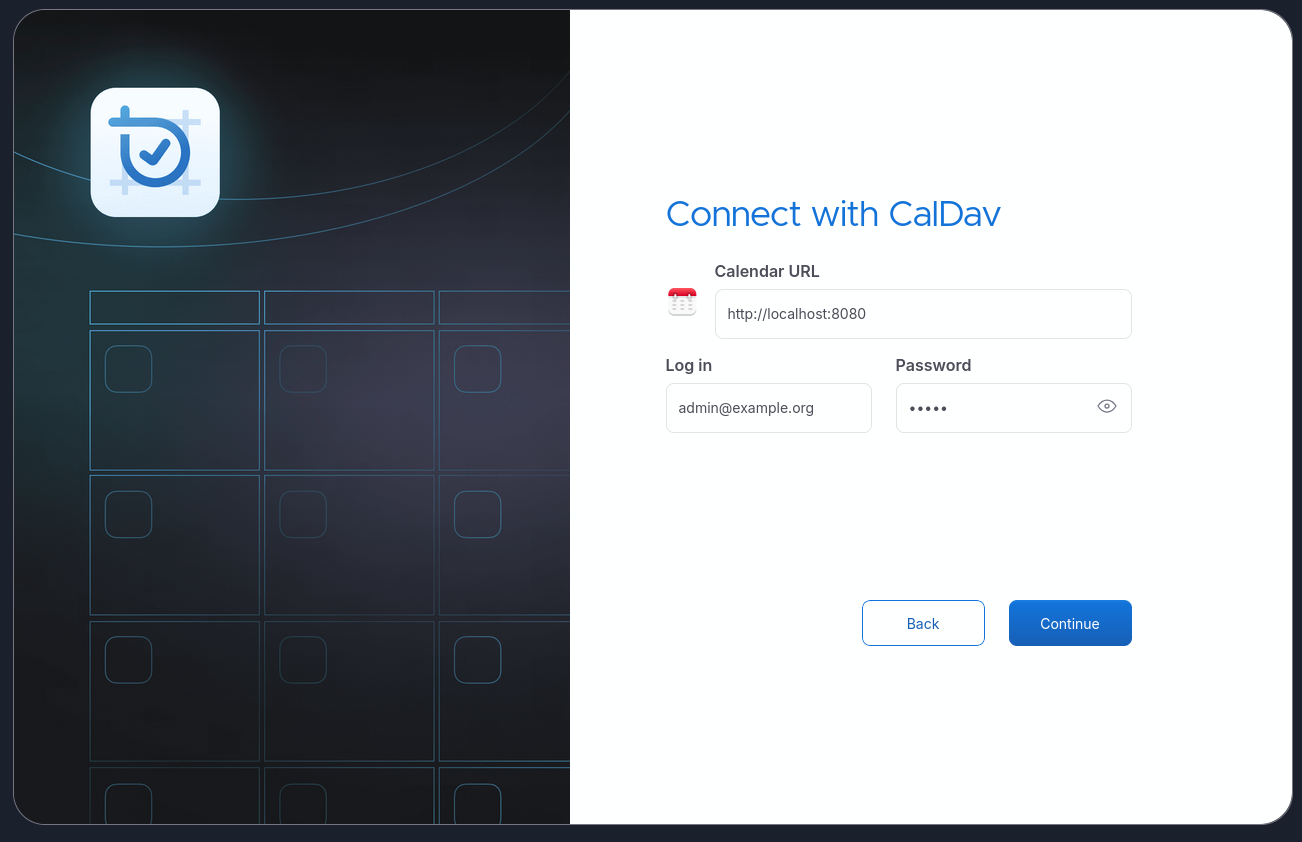
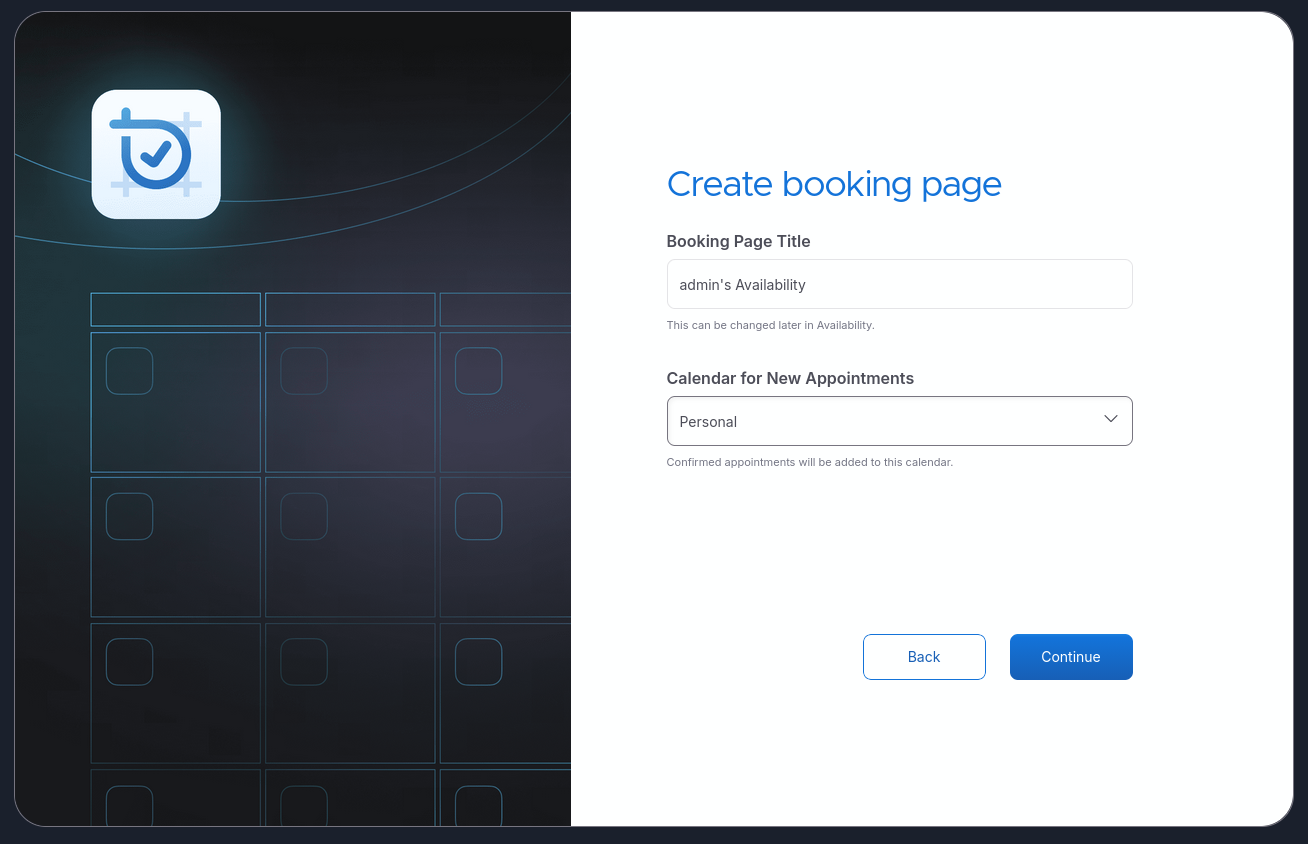
Stalwart has CalDav so I figured I could just use that. Then, after another hour of fiddling with the Stalwart admin panel without sucess, I decided to just log into my Nextcloud server since that too has CalDav support. Once connected you can configure a booking page and select the calendar to use for appointments:
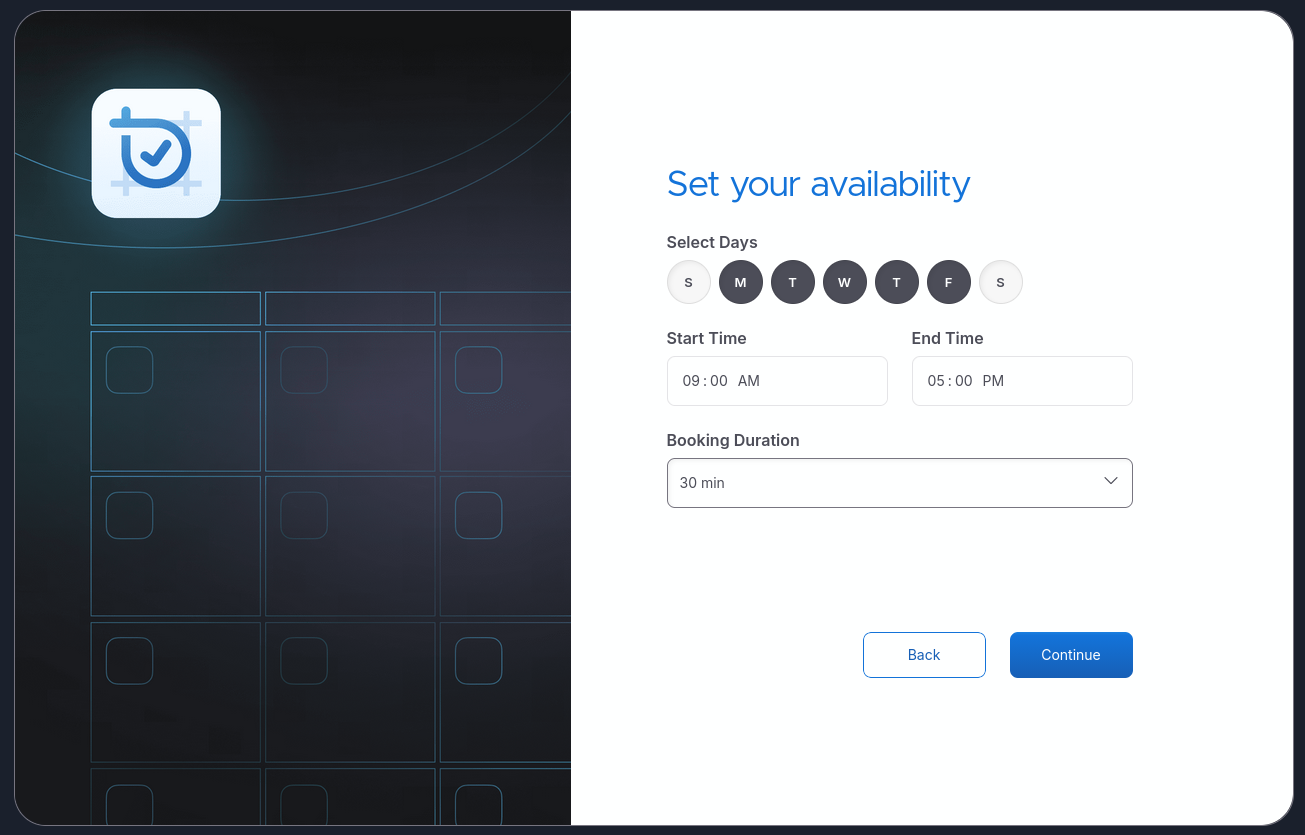
And set your availability for bookings:
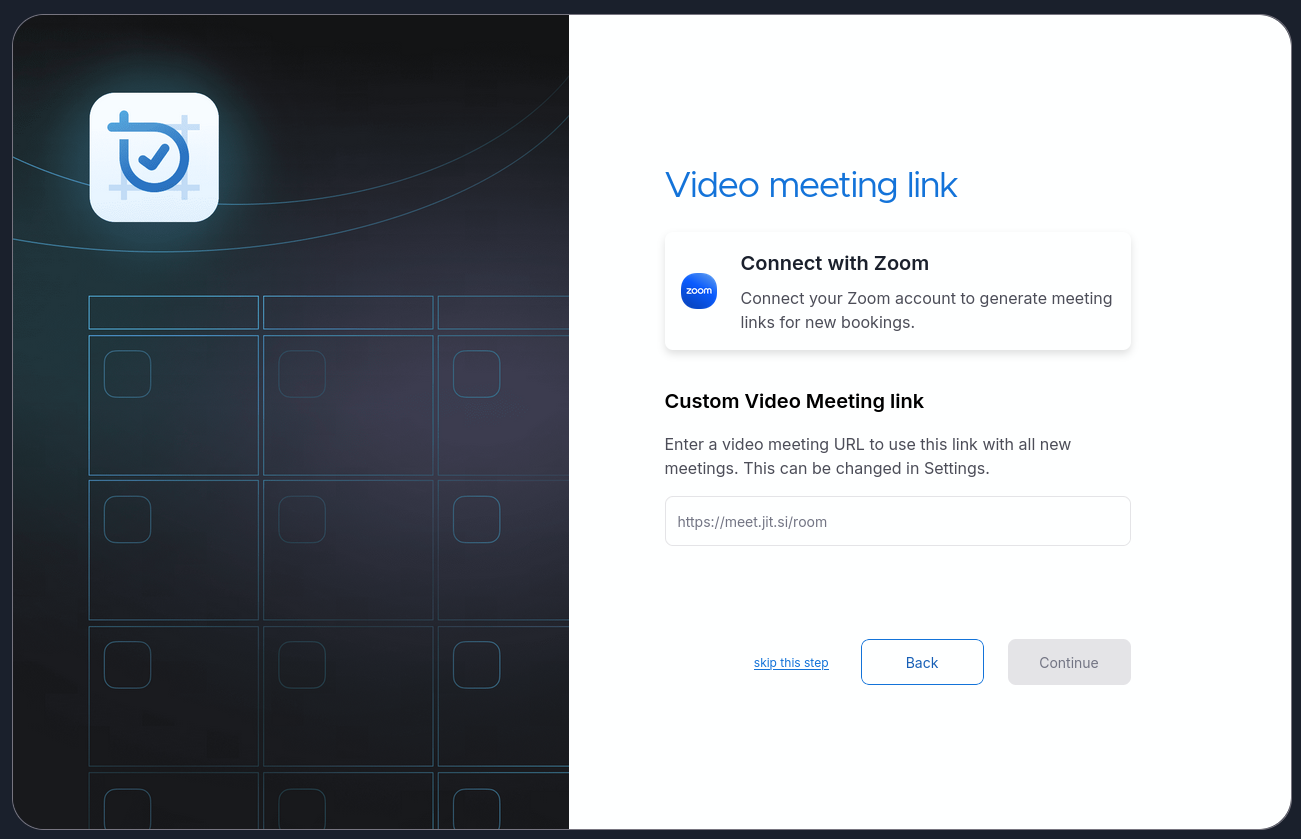
As well as video meeting links if you want:
Then you can access your dashboard to see your synced calendar events:
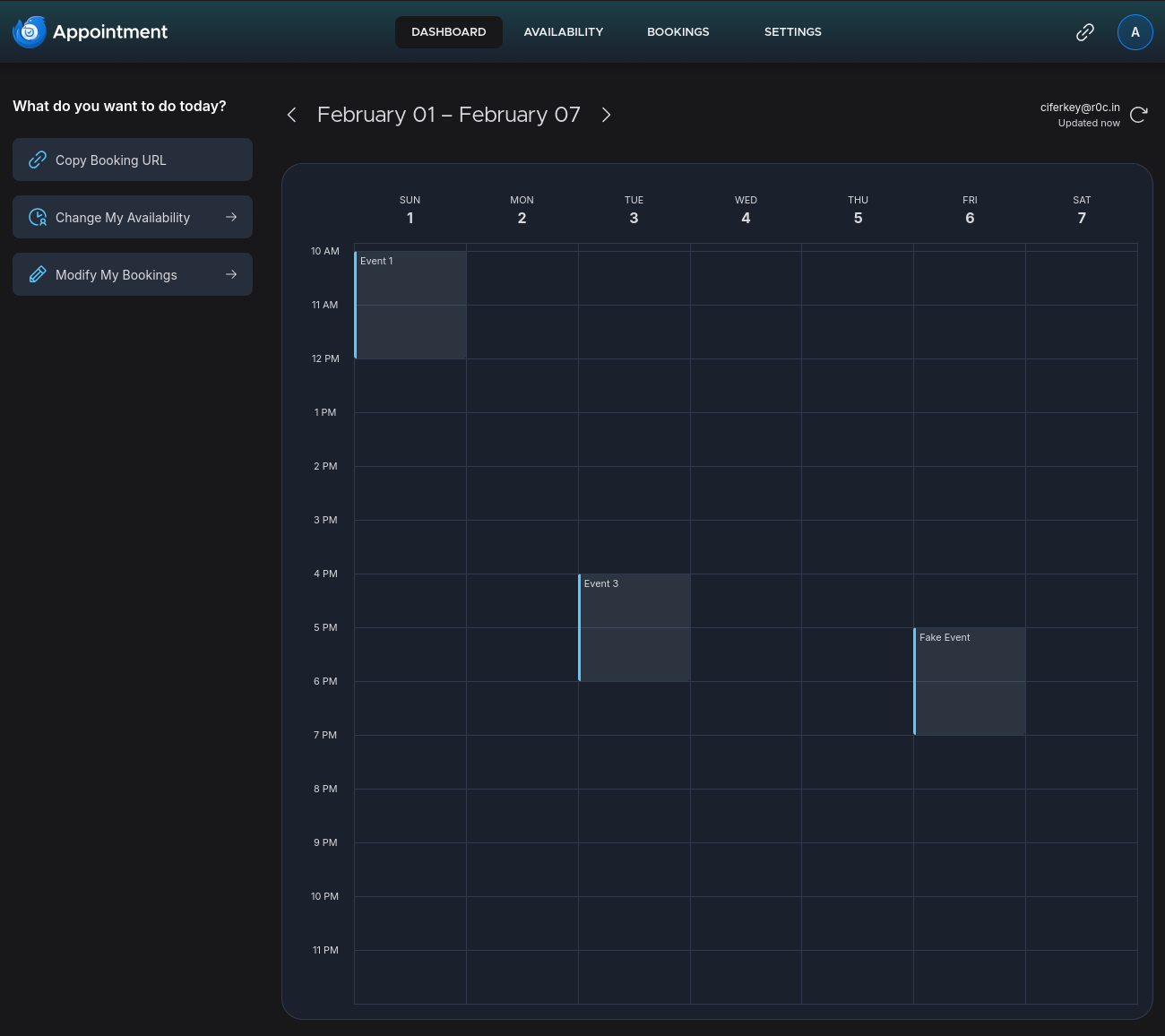
You can create a shareable link for appointment signups. A person with your link would see something like this:
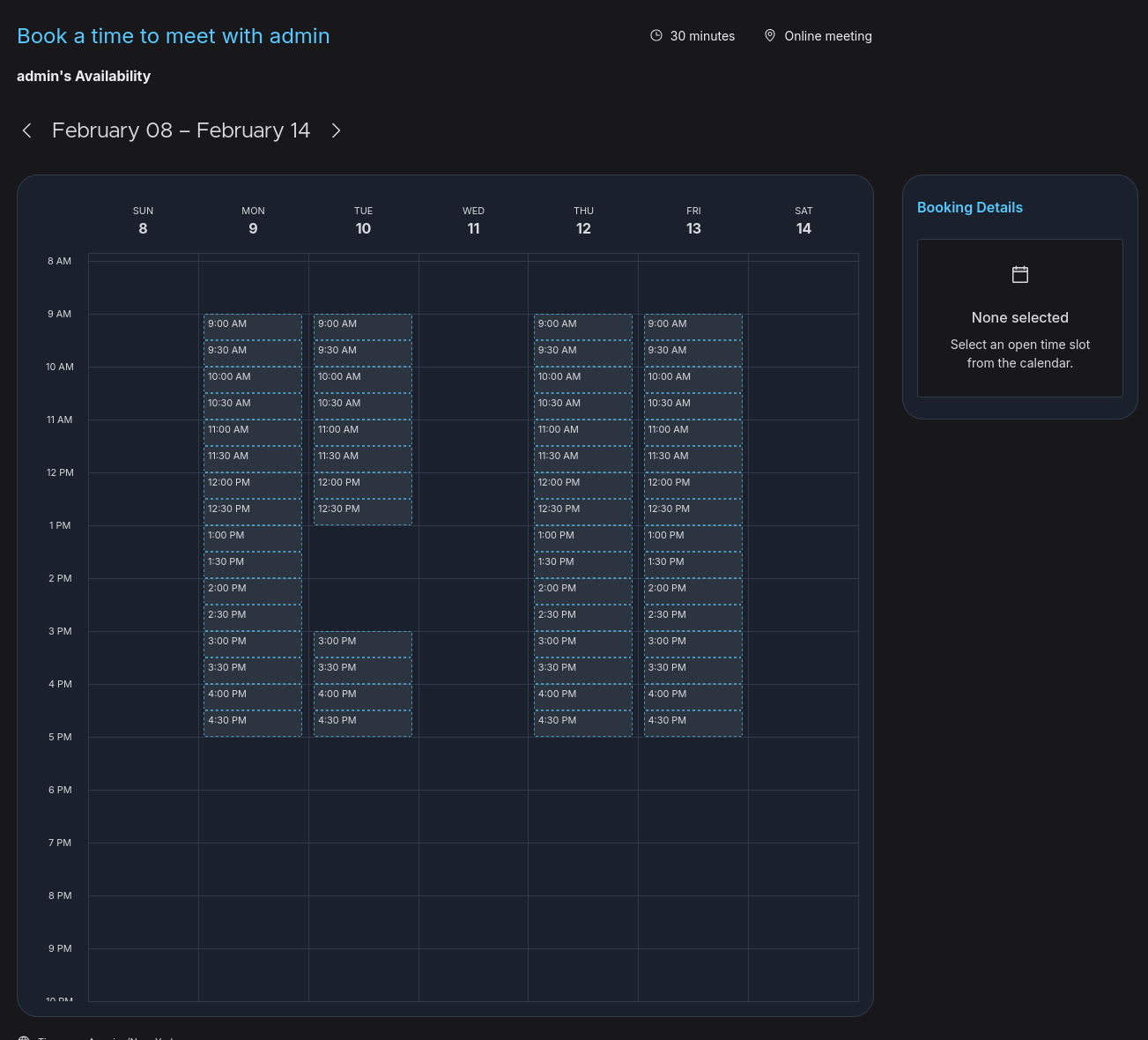
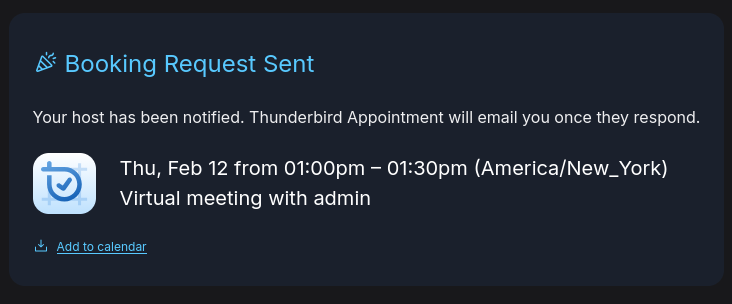
Once they pick a time they get a confirmation:
Back on your dashboard you see a list of unconfirmed bookings:
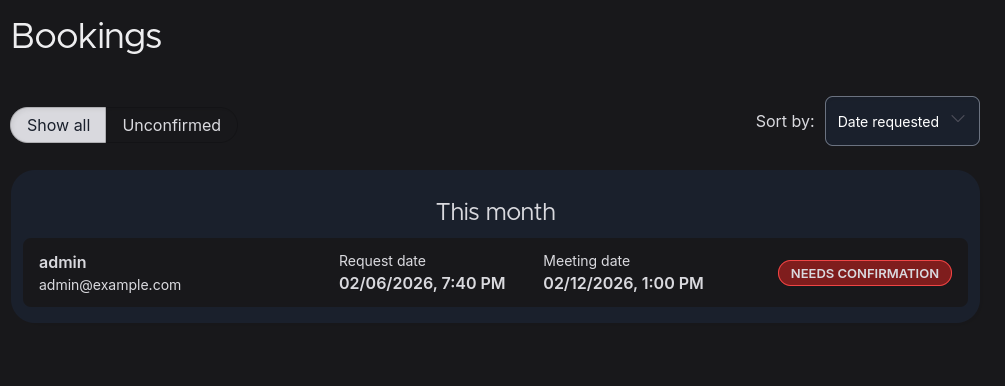
You can see the details for each of those unconfirmed bookings:
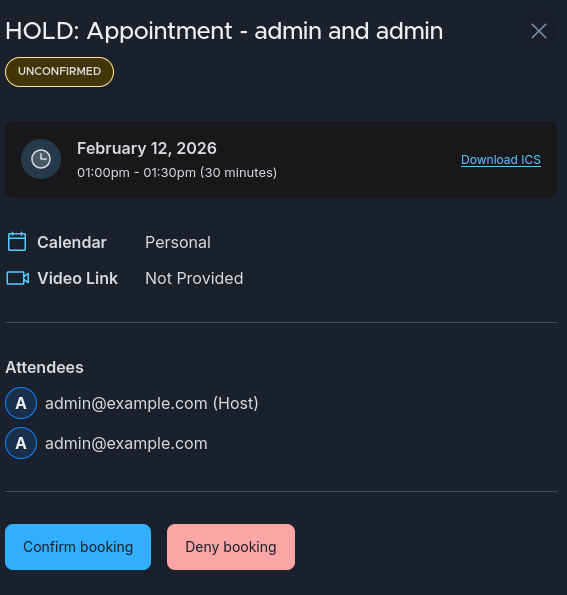
And confirm them:
chef's kiss
The bad news
Now here's the thing, after trying it out I realized Thunderbird Appointment doesn't support group based booking. I'm not sure if that's even on the roadmap. So if you're reading this and have the ability to bump me up on that wait list, please do. I promise to provide lots of feedback as I try the service out. I've already responded diligently to the Thunderbird Pro – Evaluation Questionnaire email you've sent out.
At work we have mostly moved off Poetry to uv and I could not be happier. ↩︎
Thunderbird is also actively contributing to the project. ↩︎
Member discussion