Installing Jellyfin Tizen On Your Inlaw's Samsung TV In Just N Simple Steps
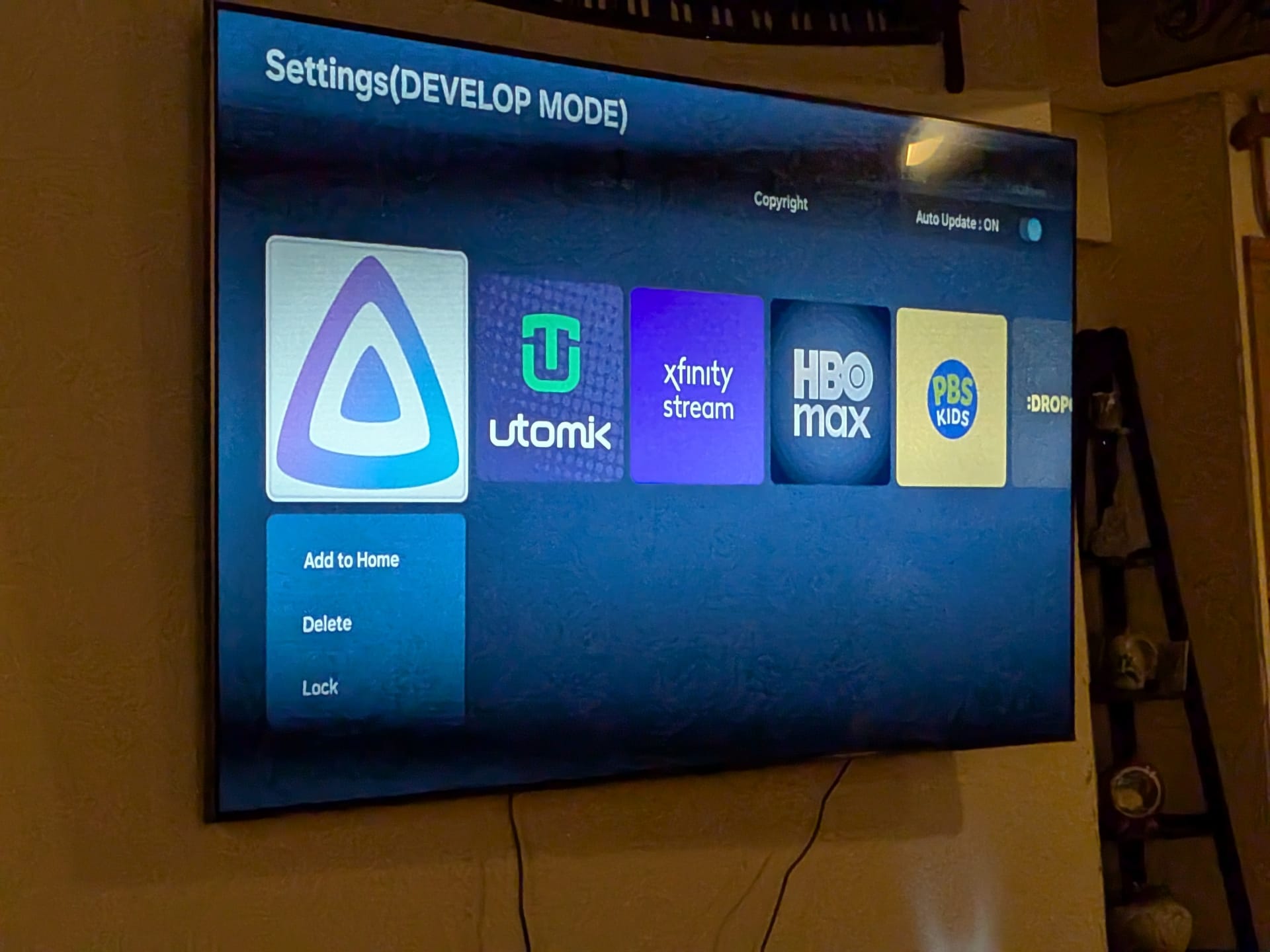
Update 2026-01-02: Confirmed in a thread on the repository, the Tizen Jellyfin app is now avaible in the Tizen app store!
I have some strong views on software use, which I've mentioned with my interest in GraphemeOS,
license changes in FOSS projects, and
changes to grandfathered plans. So none of this should come as a surprise.
I was visiting some family for the holidays that had a Samsung TV. Last year I tried to install Jellyfin and failed. However, last year I also took an edible before trying so... This year I tried again.
Also, these are not actually instructions. Do not follow them top to bottom. If you actually want to install Jellyfin Tizen, skip all the way to the end of the article. The full steps are written here to highlight how absurd the whole ordeal was.
As easy as 1,2,3... 4... 5... 6..
Even though Samsung doesn't use the Tizen branding anymore on their TVs they are still running Tizen under the hood. Jellyfin Tizen is the app to install. However, Samsung will not allow Jellyfin on the app store so I have to directly install it. [1]
This involves installing Tizen Studio and a certificate manager. That shouldn't be so bad, they have a Linux build so I can just grab the package... There's no package on NixOS. That's Ok, I can just have a look for any open issues:
nvm its so cursed
Closed as not planned
Oh. Oh no.
That's OK, someone has created a docker based project for installing the package so I don't need to install Tizen Studio, I can just run that.
The instructions required me to enable developer mode, but did not work for me, but the steps in this reddit comment I found did. Except I also Had to restart the TV by holding the power button for two seconds for the changes to take effect.
Also, also not in the notes, but I had to enter my laptops IP address when enabling developer mode so I could connect.
Ok, now I just need to a simple docker run command to install and-
install failed[118, -12], reason: Check certificate error : :Invalid certificate chain with certificate in signature.:<-3>
Oh right the certificate manager. I have to get a certificate to sign the build with that should be easy, wait I also need Tizen Studio for that.
Well thankfully there's this random gist of openssl commands I can run- no actually that's out of date and doesn't work anymore. Thankfully in the comments of the gist someone has done a more thorough write up- wait no that page doesn't exist anymore because the repo was taken down- wait no, some entirely different person has bundled the whole process into a script. Oh, I need to sign up for a Samsung developer account to use with the script. Let me do that too.
I need the device ID for that scrupt and after stumbling through the TV's settings I finally found it. Also, the docs don't mention needing openssl, but turns out I'll have to nix-shell -p openssl to run.
Finally, I have the cert generated-the script generates certs with no password, and the docker project requires a cert with a password, so I need to patch the docker app- now wait that's just out of date and I can use the --cert-password arg.
So, I'll just regenerate the cert a second time. Now finally! I can install Jellyfin:
- `install failed[118, -12], reason: Check certificate error : :Invalid certificate chain with certificate in signature.`

    Recent TV models require the installation packages to be signed with a custom certificate for your specific TV.

    See [official documentation](https://developer.samsung.com/smarttv/develop/getting-started/setting-up-sdk/creating-certificates.html) on creating your certificate and use the custom certificate arguments.
It still fails... It still fails...
Finally a solution
Wait, in the comments of one of the above issues someone says they've made a Windows program to simplify the whole process and it's since been updated to support Linux! I might as well try that before I turn in for the night.
/home/ciferkey/tizencertificates/liblibICE.so.6.so: cannot open shared object file: No such file oirectory
Forgive me for I have sinned. It was very late and in my tiredness I used Claude to generate the nix expression to make this work:
{ pkgs ? import <nixpkgs> {} }:

(pkgs.buildFHSEnv {
  name = "jellyfin2samsung-env";
  targetPkgs = pkgs: with pkgs; [
    dotnet-runtime
    xorg.libICE
    xorg.libSM
    xorg.libX11
    xorg.libXi
    xorg.libXcursor
    xorg.libXrandr
    fontconfig
    icu
    openssl
    zlib
  ];
  runScript = "bash";
}).env
nix-shell and ./Jellyfin2Samsung and a moment of beauty. The GUI starts, I use some drop downs... Everything works. I'm free.
It shouldn't be like this.
I hate that the manufacturer makes it so hard to run something on hardware I own. I love that the community continues to work so hard to make sure we can choose our own software.
These work arounds change and break often, but this is what works as of now.
The breadcrumbs I found online helped me find my way through this. So my hope here is to provide more breadcrumbs for future travels.
My partner sat beside de on the couch the whole time, being more patient than I really deserved as I hogged the TV trying to do all of this. Thankfully the rest of the family was asleep. Happy holiday hacking to all.
I'll avoid calling it sideloading because we should just be able to install apps on hardware we own. ↩︎
Member discussion